
By AZ Payment Pros
Five minutes can get your Square account started and your POS app ready to configure. Getting fully ready to take payments takes a little longer: you’ll still need to verify your account, connect your bank, build your item library, and test your setup.
The good news? Square brings payments and business tools together in one connected platform, and getting started is often much more straightforward than a traditional merchant account application. Use this quick guide to plan your Square POS setup, then reach out if you want local help getting every detail right.
Step 1: Create Your Square Account
Start by signing up for a Square account. Enter your business details and choose the business structure that applies to you. Square will also ask for information to verify the account owner and business.
Use accurate information and keep your details consistent with your business and bank records. Square may request additional verification, so account approval and the ability to accept payments aren’t guaranteed to happen in five minutes.
Once you’ve signed up, sign in to Square Dashboard to manage your account from a computer, or continue setup in the app.
Step 2: Choose Hardware That Fits Your Business
Pick hardware based on where and how you serve customers, not just what looks good on the counter. Square offers options for a fixed checkout, mobile payments, and tablet-based setups. Explore Square hardware and choose the arrangement that fits your workflow.
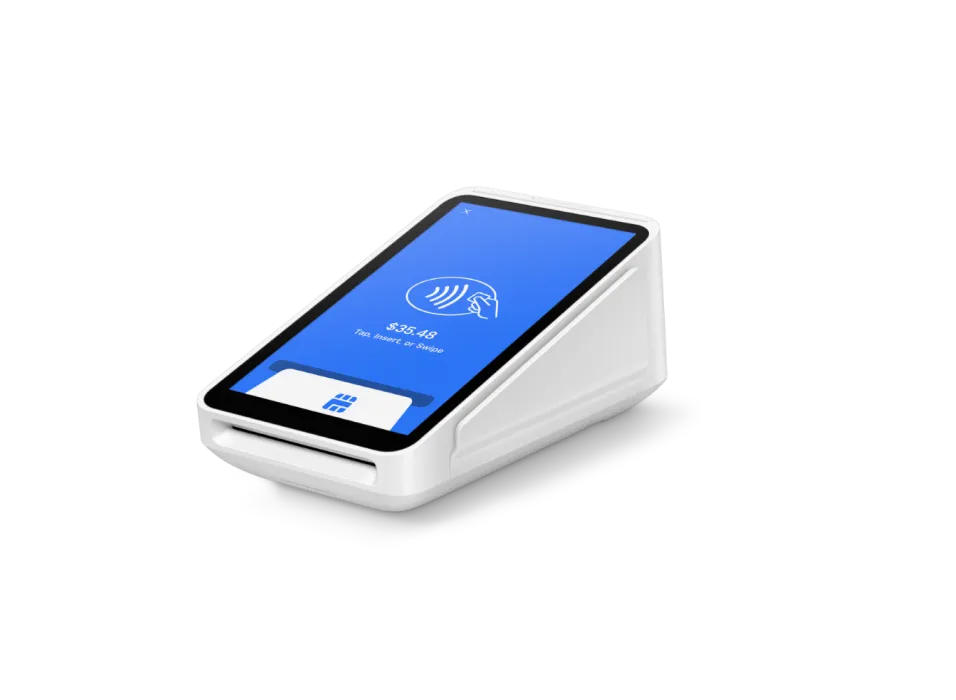
- Square Terminal: A compact, all-in-one device for countertop payments and flexible checkout. It’s a good option when you want a dedicated payment device without a full register setup.
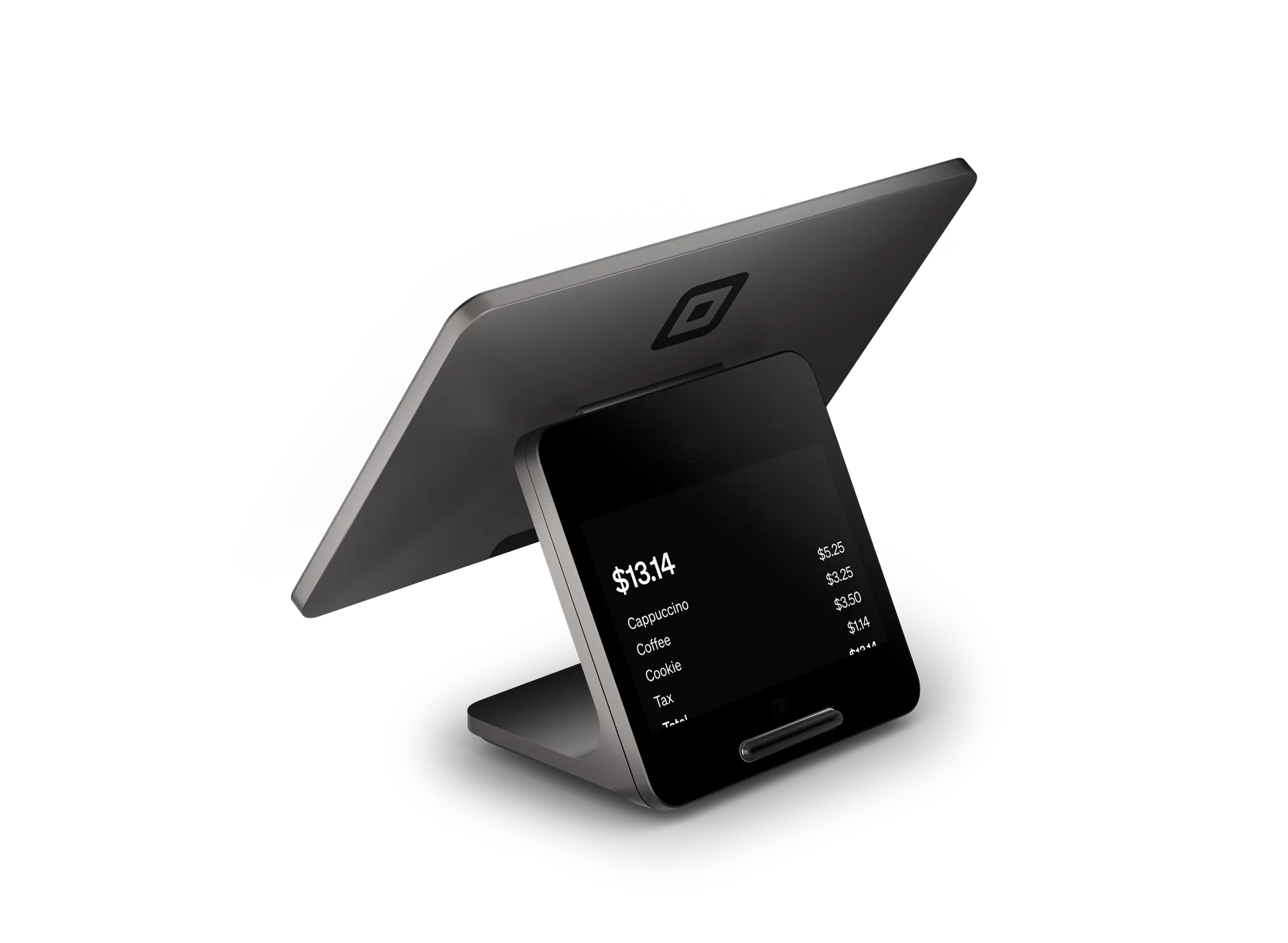
- Square Register: A dedicated counter system with a seller screen and a customer-facing display, useful for a primary checkout station.
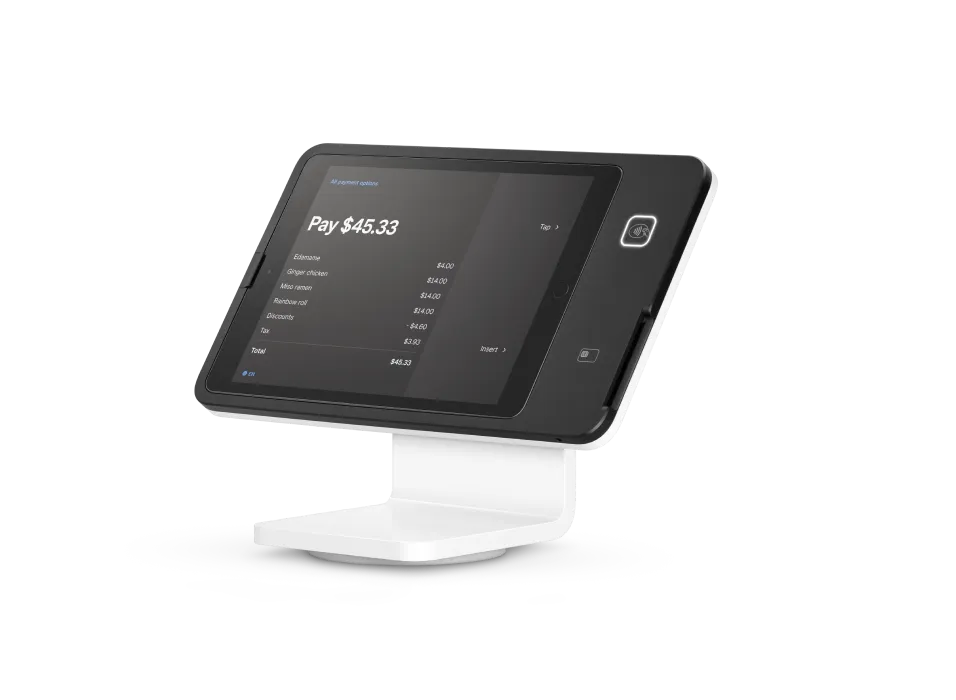
- Square Stand: Turns a compatible iPad into a countertop POS. Check iPad compatibility and any accessories you’ll need before ordering.
- Square Reader: Pairs with a compatible phone or tablet for a portable, simple way to accept payments.
If your team takes payments at a table, market, job site, or customer’s home, a mobile setup may be more convenient than a fixed register. For device-specific steps, follow Square’s guides for Square Terminal, Square Register, Square Stand, or Square Reader.
Step 3: Download and Configure Square Point of Sale
Download the Square Point of Sale app from the App Store or Google Play on a compatible device. Sign in with your Square account, then follow the in-app setup prompts.
Choose a mode that fits the way you sell. Square provides starting configurations for different business needs, including standard POS, retail, services, appointments, and food businesses. The right setup helps put relevant tools in front of your team.
Next, review practical settings such as:
- Business details: Confirm your business name and location.
- Receipts: Choose how you want customers to receive receipts.
- Checkout: Review tipping and other checkout options.
- Team access: Decide who needs access and what they should be allowed to do.
Square’s guide to Point of Sale modes explains how to download the app and select a starting mode.
Step 4: Add Items, Services, and Inventory
A clear item library speeds up checkout and helps you see what’s selling. In Square Dashboard, open the item library and create your products or services. Add names and prices, then organize items with categories. Depending on your business, you can also add variations, modifiers, descriptions, images, SKUs, and inventory tracking.
For example, a retailer might organize products by department and track stock. A salon might create service items with clear names and prices. A café might build a menu with modifiers for common customizations.
Start with the items your team sells most often. Check each item on the POS screen before launch, and confirm that its price, tax treatment, and available options are right. Square’s item setup guide covers creating and editing items.
Step 5: Set Up Sales Tax and Tips
Tax settings need your attention before your first real sale. In Square Dashboard or the POS app, create the applicable tax, enter its rate, and decide which items it applies to. Square allows you to choose whether tax appears as a separate amount or is included in the listed price.
For an Arizona business, verify the correct rates and rules for your location and the products or services you sell. Square provides tools to configure tax, but it doesn’t replace tax advice. Check your requirements with the appropriate tax authority or a qualified tax professional. Review Square’s sales tax setup instructions.
If tipping is relevant to your business, enable it in checkout settings and choose the options that make sense for your customers and staff. Test the checkout flow so you know exactly what customers will see before you open.
Step 6: Connect a Bank Account for Deposits
Link and verify a U.S. transactional bank account so Square can transfer your funds. In Square Dashboard, go to Settings → Account & Settings → Banking → Bank Accounts and select Add Bank Account. Follow the verification steps.
Square may offer instant bank linking or manual verification. Manual verification can take several business days, so complete this step early rather than waiting until after your first sale. Check that you’ve selected the right account and location if your business has more than one.
See Square’s bank account linking guide for current instructions and transfer details.
Step 7: Turn On Helpful Tools as You Grow
Square can connect more than your in-person checkout. Add the features that support how your business operates now, then expand when you’re ready.
- Invoices: Send payment requests for services, projects, or work completed off-site.
- Online store: Give customers a way to browse and buy online. Square’s online store setup guide walks you through getting started.
- Customer directory: Keep customer information organized and make it easier to recognize returning customers.
- Staff accounts: Give employees their own access and set permissions that match their roles.
The right POS systems for small business should make everyday tasks simpler without forcing you to use every feature at once. Square’s connected ecosystem lets many businesses combine in-person checkout with online sales, invoicing, customer tools, and reporting as their needs change.
Step 8: Test Before You Open
Before serving customers, check your setup from start to finish:
- Confirm the POS app is signed in and your hardware is connected.
- Ring up a sample item and verify the price, tax, and tip options.
- Check that the customer receipt looks right.
- Review your item list, inventory, and staff permissions.
- Confirm your bank account is verified and your transfer settings are understood.
Fixing small configuration issues before a rush makes opening day smoother for your team and your customers.
Get Square Set Up With Local Support
Square’s streamlined onboarding can help you move quickly from account creation to a working POS. But the best setup is more than downloading an app. Your hardware, item library, taxes, tips, team access, and daily workflow all need to fit the way your business runs.
AZ Payment Pros helps Arizona businesses choose, configure, and use Square with white-glove installation and hands-on staff training, in English and Spanish. We support businesses across retail, food service, professional services, home services, and more. And because we’re not tied to one platform, we’ll recommend Square when it fits, or help you compare options like Shift4 Dine, Dejavoo, and Valor.
Whether you’re researching credit card processing in Arizona or looking for merchant services in Phoenix, we’re here with local guidance that continues after installation.
Contact AZ Payment Pros for help planning your Square setup and getting your business ready to take payments.